How to Resize Images in Bulk (Batch Actions)
Batch Actions allow you to run Photoshop Actions on an entire folder of files.
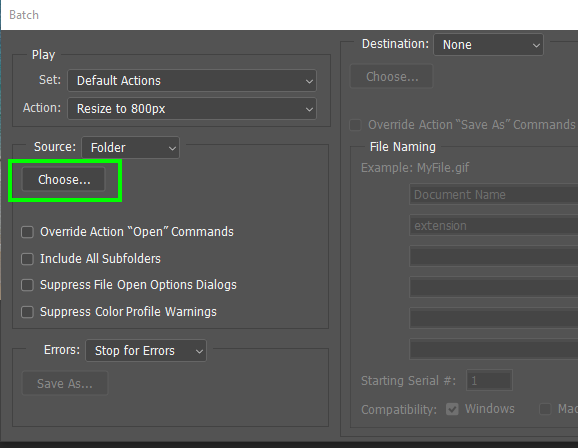
- Go to File>Automate>Batch
- Select your desired Action
- Click “Choose…” to select the folder you’d like to apply the Batch Actions to
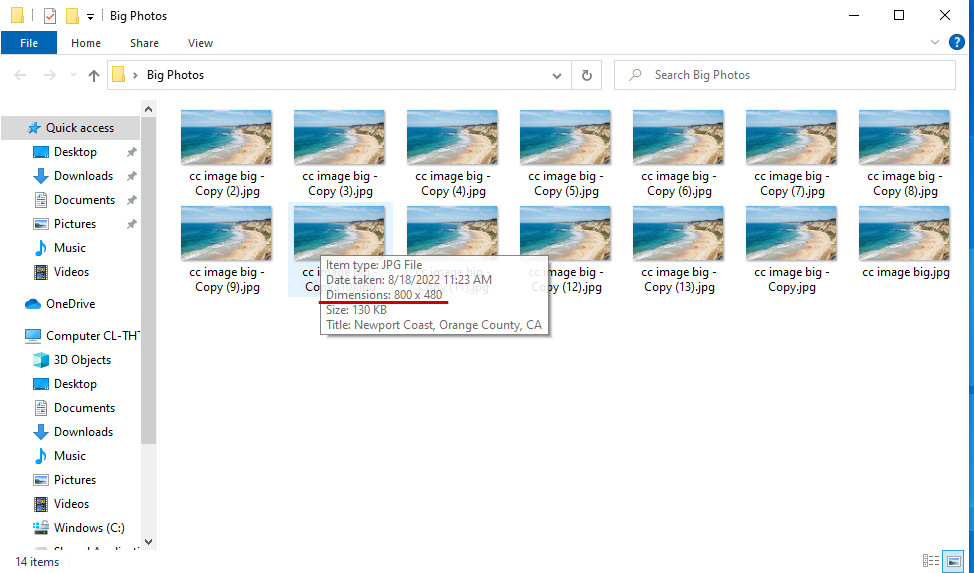
- Click “OK”. Photoshop will then automatically apply your action to all images within the folder. In our example, it resized and saved every image to an 800px width