
How to Clear Each Website’s Cache
If your updates on Contentful aren’t showing up on the website and you’ve already used the Cache Refresh tool in REA, you might need to clear the website’s cache. Use the links below to jump to each website’s instructions:
Fashion Island/Irvine Spectrum Center
- Log in to Umbraco. Ex: fashionisland.com/umbraco
- Look for the ‘Rebuild Cache’ module. It should be on the first page you see after logging in
- Click the button for the respective cache you want to clear

The Market Place
If you make edits in Contentful, you won’t see them in TMP until about an hour later. The reason is because there is a cron job that runs every hour to update the Stores, Restaurants and Events.
If you want to see the edits sooner, you can trigger the cron job manually so it updates right away. Here are the steps to do that.
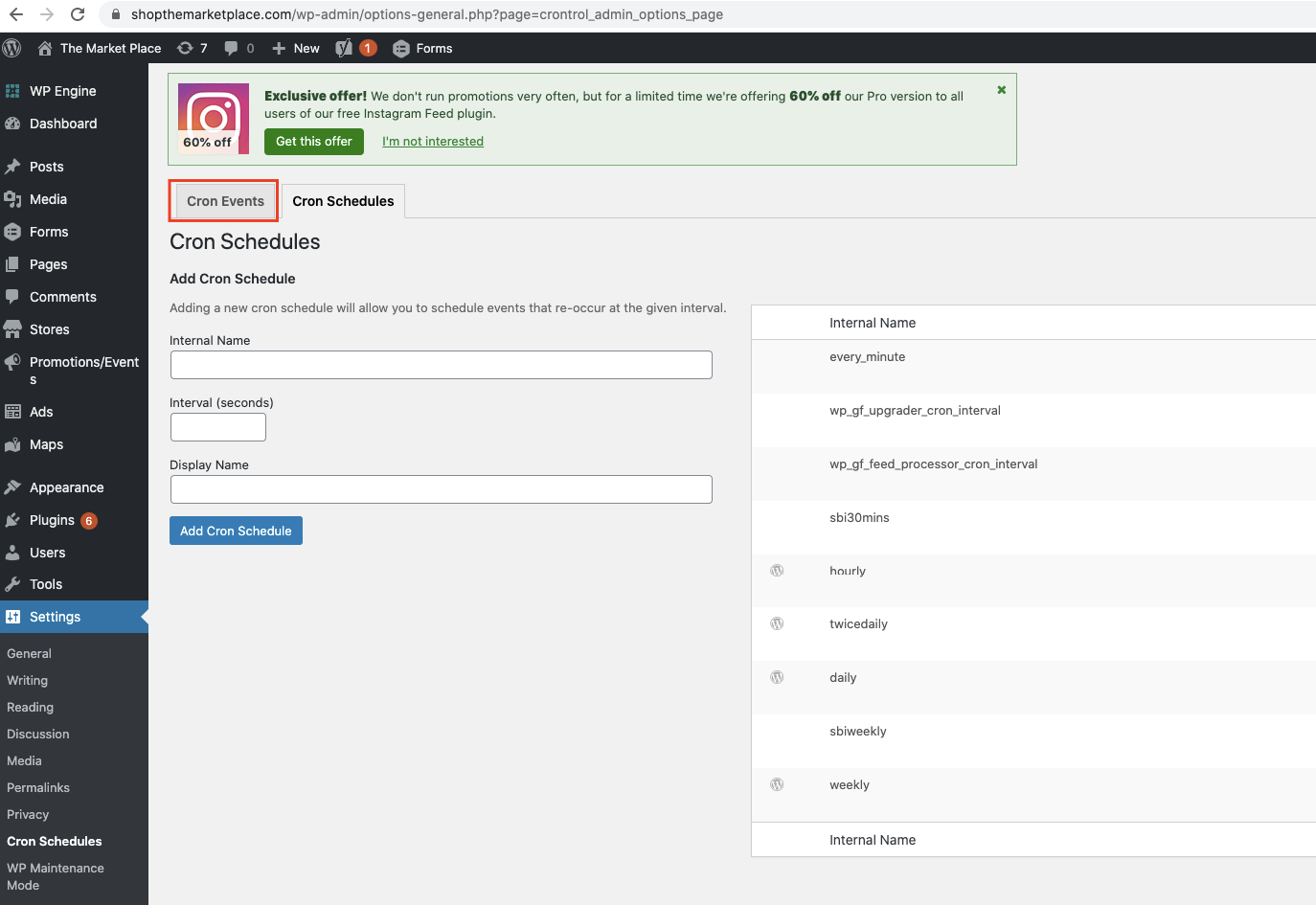
1. Log in to WP and go to Settings → Cron Schedules

2. Click on the Cron Events tag
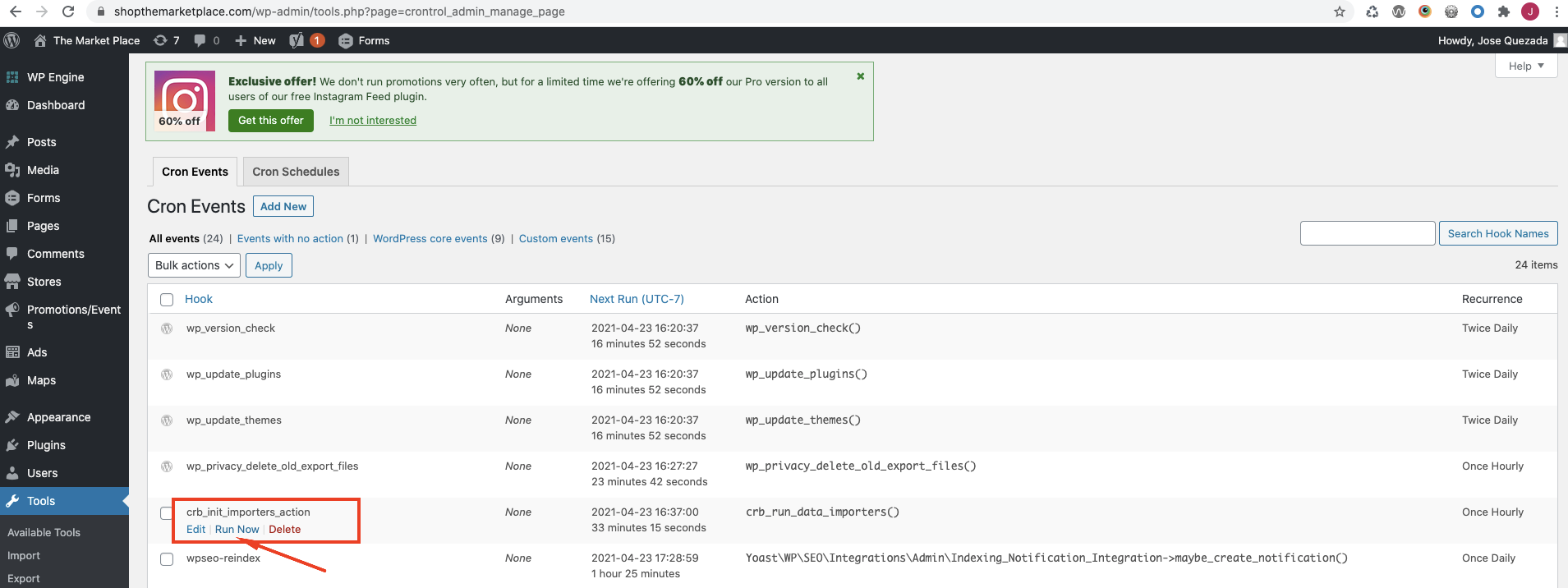
3. Look for the crb_init_importers_action Hook. If you mouse over, you’re going to see some buttons show up. Click on the “Run Now” button
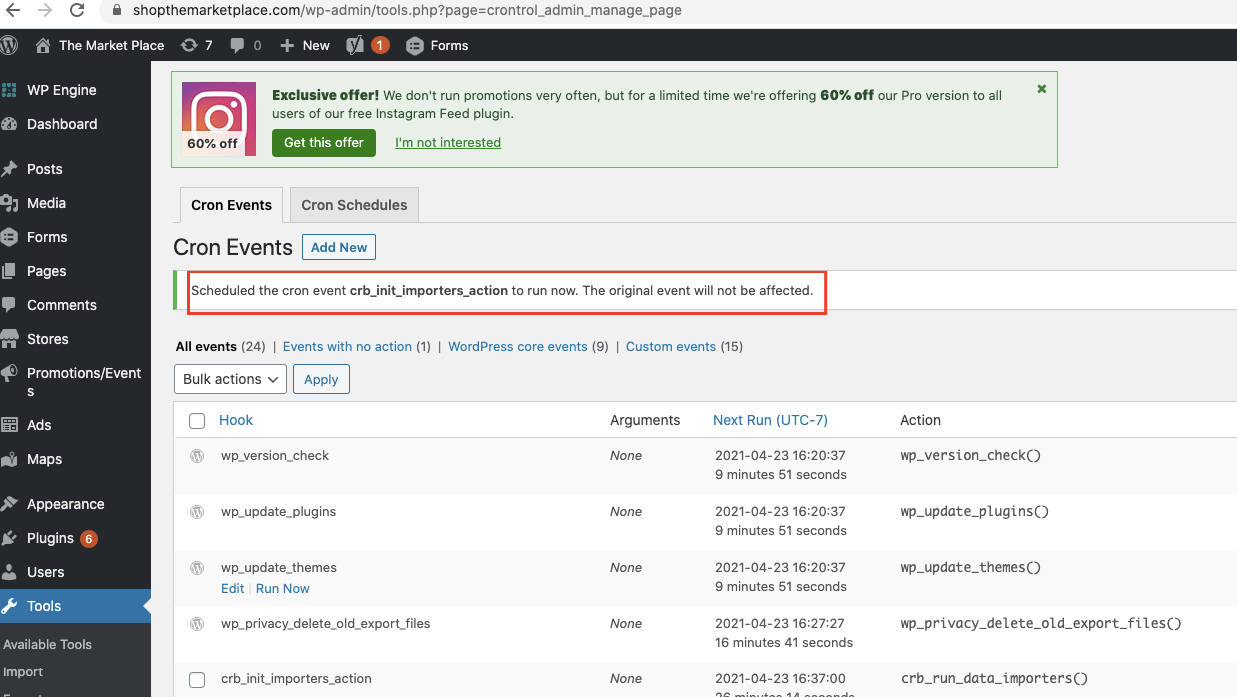
4. It’ll run and it’ll show a message
That’s it.
Note: If you don’t see the updates, you might have to click it a couple of times. The cron job updates in batches of 10 (for the events as far as I know).
Irvine Company Retail
- Log in to WordPress
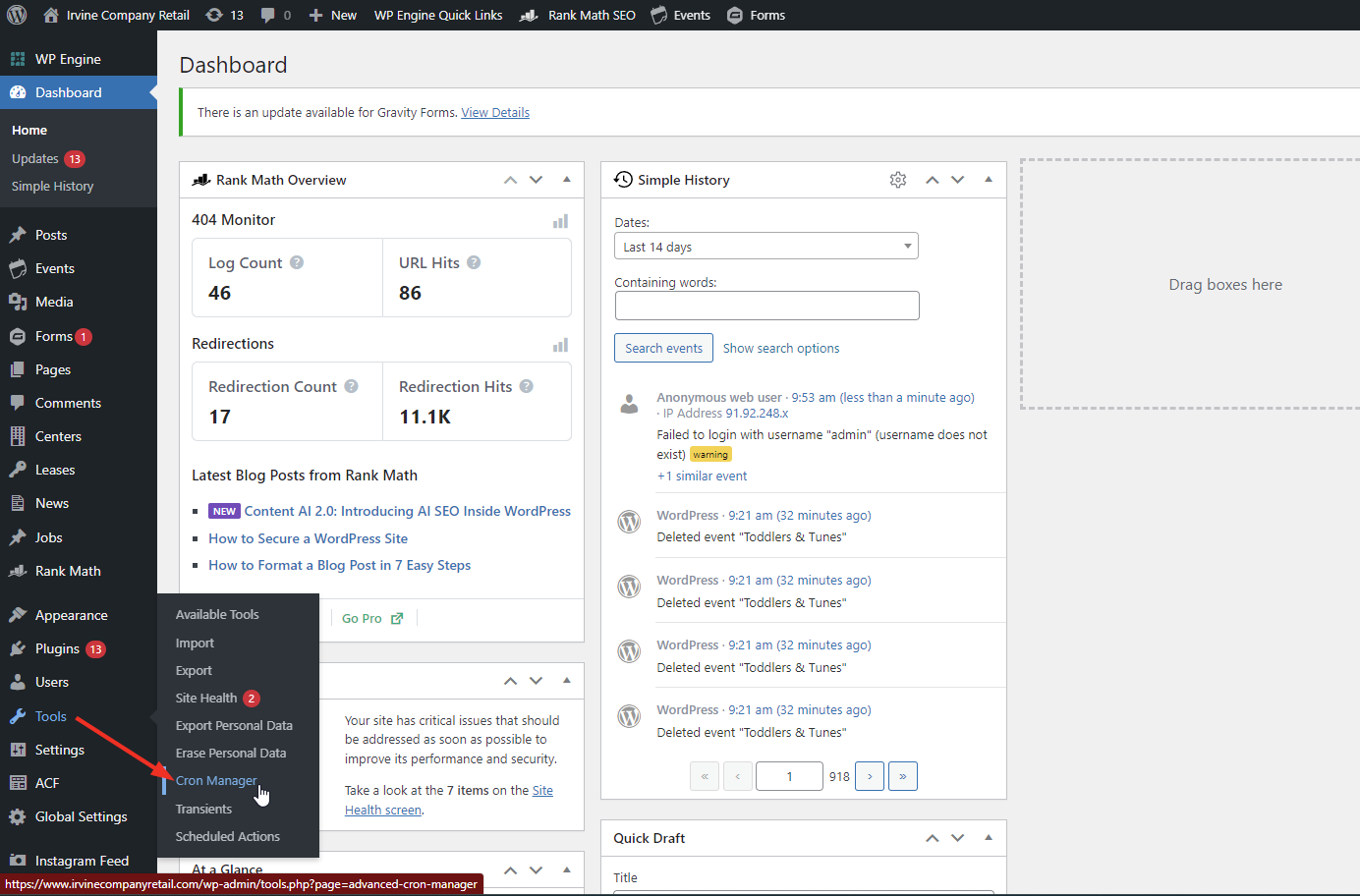
- Go to Tools>Cron Manager
- Look for the events titled ‘icr_scheduled_xxxx’. These correspond with the type of information to fetch from the API. For example, if you want to refresh content related to an Event you updated on Contentful, you’d want to use ‘icr_scheduled_events’.
- Hover over the type of information you want to refresh, then click ‘Execute Now’

This instructs the website to pull the latest information from the API and then update the corresponding content. Executing the cron job should do the trick most of the time. If your new information still isn’t showing up, you may need to clear the website’s transients related to a specific Center or Store. Here’s how to do that:
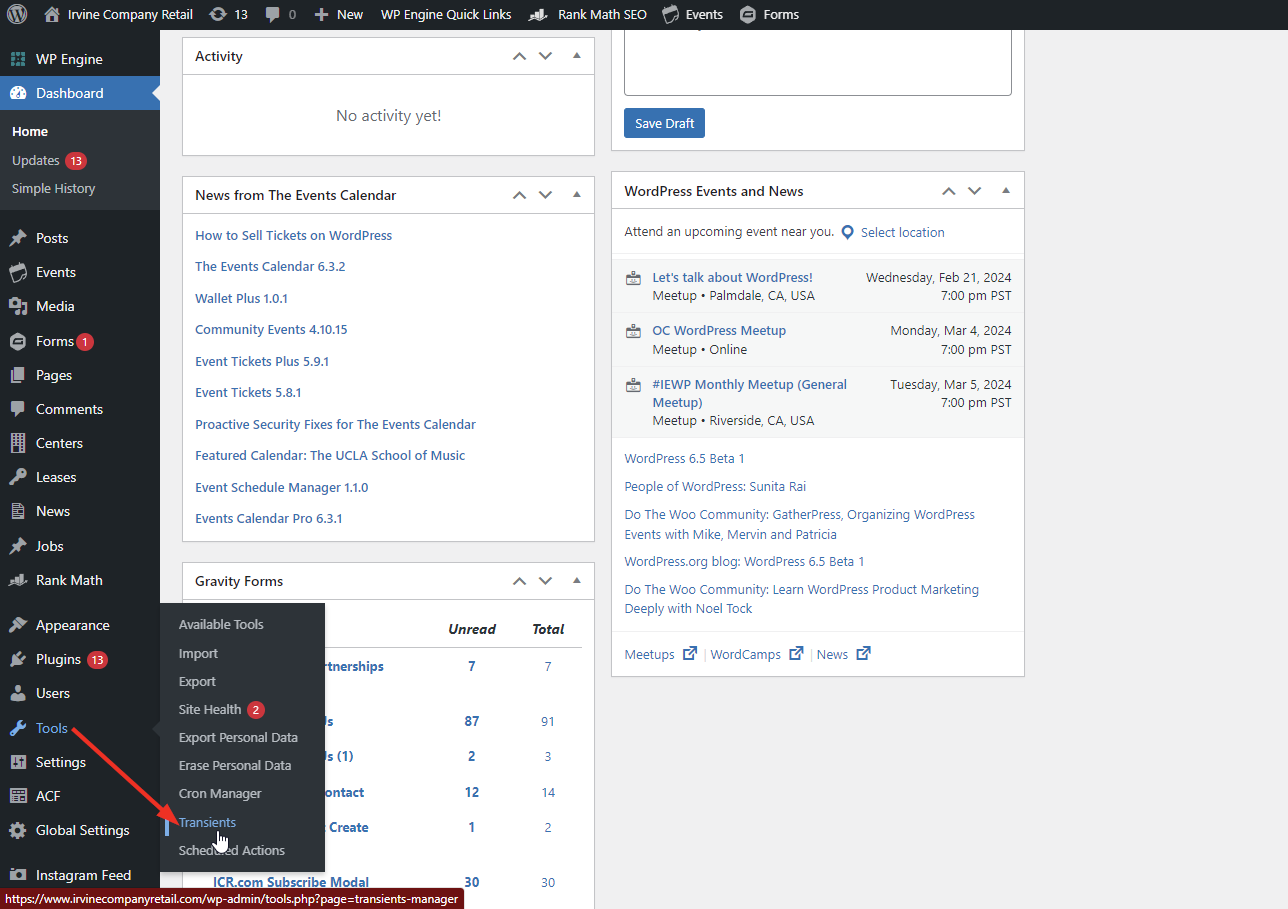
- Go to Tools>Transients
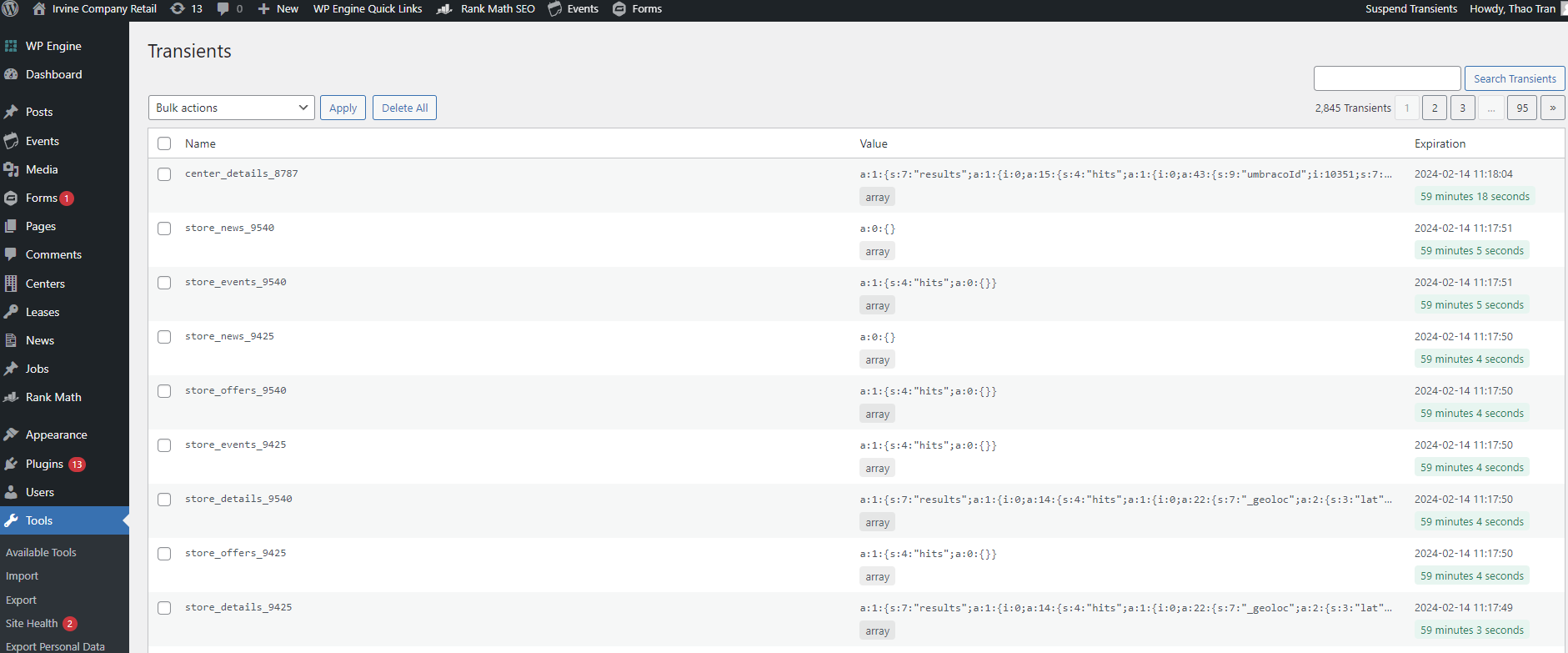
- You will see transients like “center_details_2379”, “center_offers_2379”, etc
- You can see the Center Post ID in the address bar while editing a Center Details page or hovering over the Edit button on a Center Details page
- Ex: https://www.irvinecompanyretail.com/wp-admin/post.php?post=9930&action=edit (The Market Place)
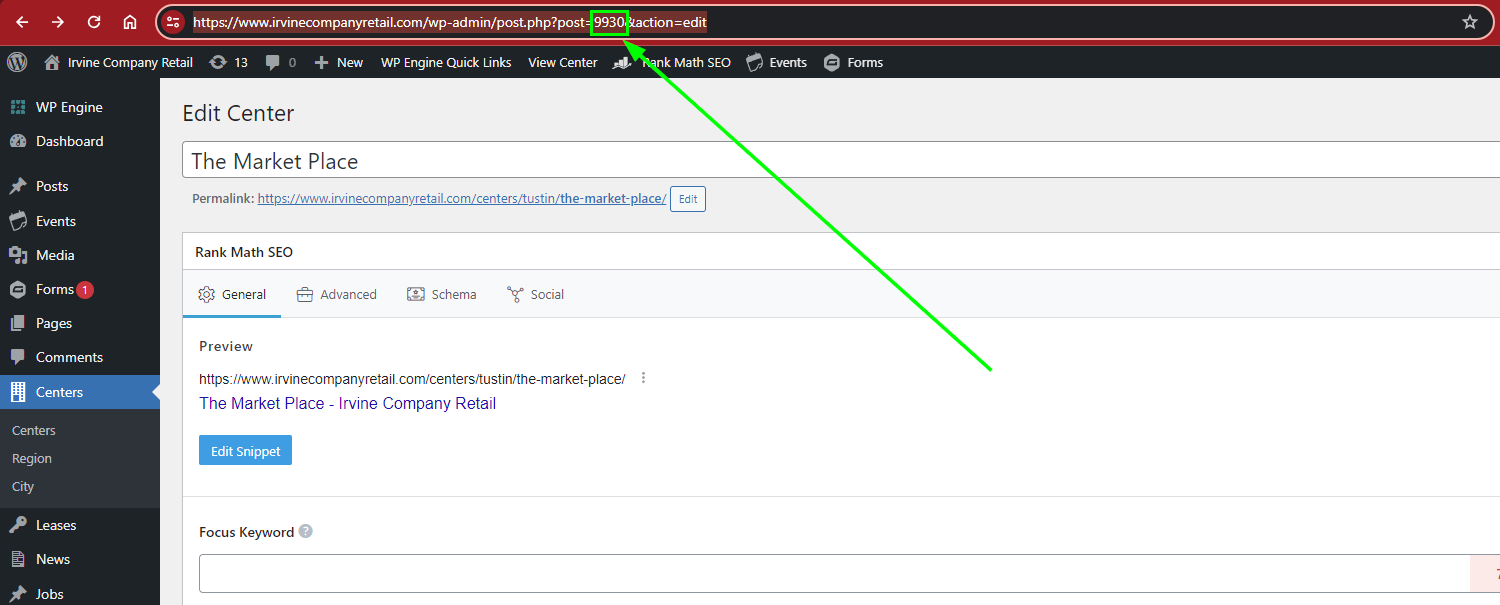
- Ex: https://www.irvinecompanyretail.com/wp-admin/post.php?post=9930&action=edit (The Market Place)
- Once you know the Center’s Post ID, you can search for that to get a list of transients associated with that Center
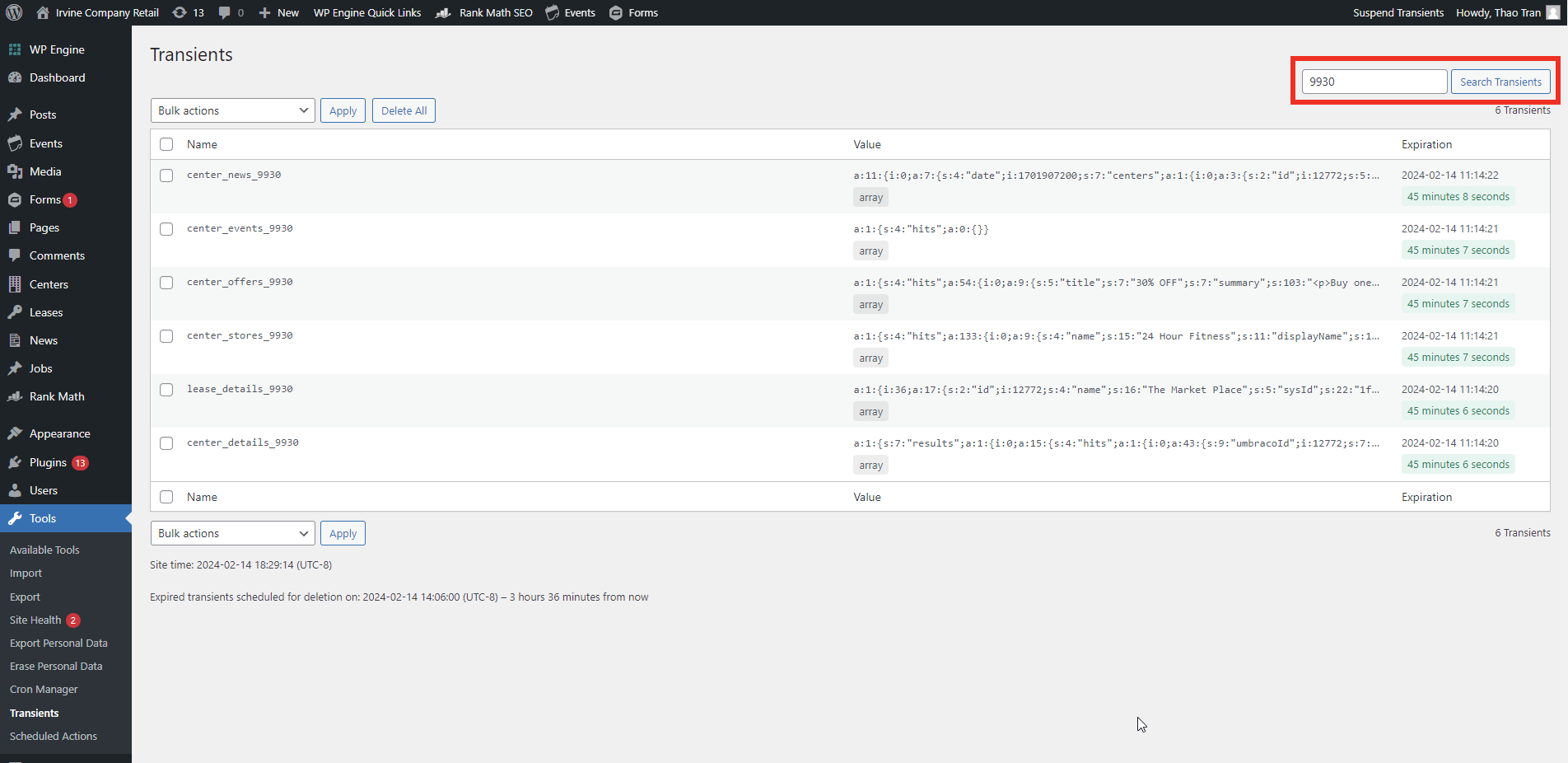
- Delete a transient associated with that Center

- Then visit that Center on the front-end
- The transient should be recreated and listed in the Transient Manager with an expiration time counting down from 59 minutes 59 Seconds