
How to Automate Resizing Images (And Other Actions)
Photoshop has a feature called Actions that allows you to record and automate tasks. In this example, you’ll learn how to create an Action to resize images.
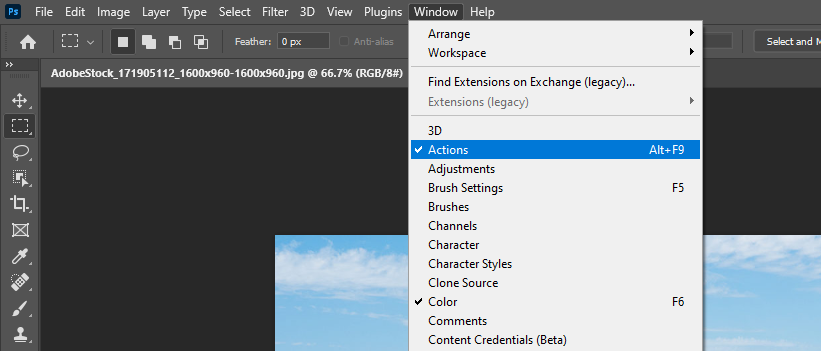
- Open the Actions window. Window>Actions
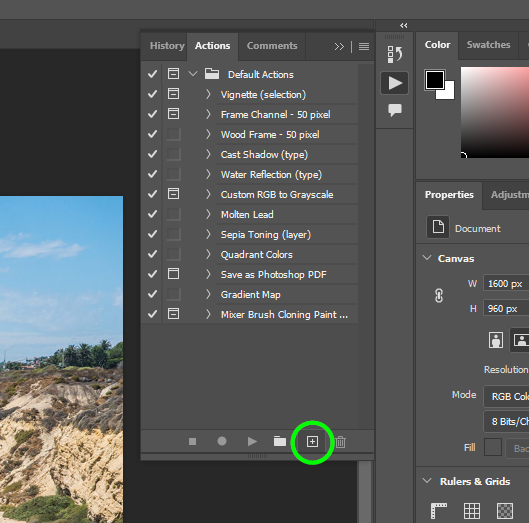
- Click on the “Create New Action” icon
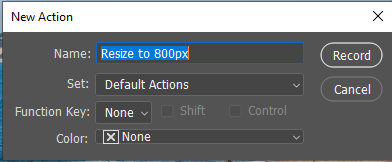
- Name your action and then click “Record”
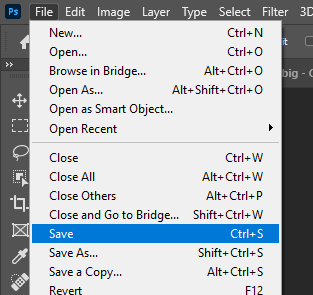
- Resize your image and then save it
- Click the Stop icon in the Action window to stop recording
- Now, whenever you need to resize an image to a width of 800px, just click on your Action from the Actions window, and then click the Play icon. This will now resize your image and save it in one click



Want to run this action on a whole folder of images? Learn about Batch Actions.